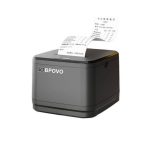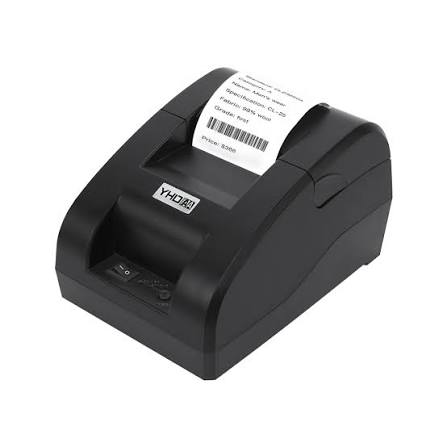

Receipt printers are essential tools in retail stores, restaurants, supermarkets, and other businesses that process daily transactions. They provide customers with printed records of purchases while helping employees maintain accurate transaction documentation. However, like other electronic devices, receipt printers can experience technical problems that interrupt normal operations and affect checkout efficiency.
Understanding common printing issues and knowing how to resolve them can reduce downtime and prevent unnecessary repair costs. A reliable Receipt Printer should deliver consistent results, but its performance depends on proper installation, compatible supplies, regular maintenance, and correct operating settings.
1. Receipt Printer Is Not Printing
One of the most common problems is when a printer receives a print command but produces no receipt. This issue can result from power interruptions, loose cables, incorrect settings, software errors, or communication problems between the printer and the connected device.
Troubleshooting methods:
- Check whether the power adapter is securely connected and the printer is switched on.
- Inspect USB, Ethernet, or serial cables for loose connections or visible damage.
- Confirm that the correct printer is selected in the computer or point-of-sale software.
- Restart the printer and connected device to refresh their connection.
- Check the printer queue for paused or pending print jobs.
If the printer still does not respond, reinstalling its driver or checking the manufacturer’s setup instructions may help identify the cause.
2. Paper Jam or Paper Feeding Problems
Paper jams can prevent receipts from printing correctly and may interrupt customer service during busy periods. They commonly occur when the paper roll is installed incorrectly, the paper is damaged, or debris obstructs the feeding mechanism.
To resolve this issue, open the printer cover according to the manufacturer’s instructions and carefully remove any jammed paper. Avoid pulling the paper forcefully, as this could damage internal components. Check the paper path for small scraps or foreign objects before installing a new roll.
Businesses should also use paper rolls that match the printer’s recommended width, diameter, and specifications. Loading the roll in the correct direction is particularly important for thermal printers.
3. Faded or Unclear Printing
Faded text, incomplete characters, and uneven printing can make receipts difficult to read. In thermal printers, these problems may be caused by low-quality thermal paper, dirt on the printhead, unsuitable print-density settings, or a worn printing component.
Several practical steps can improve print quality:
- Clean the thermal printhead using an approved cleaning method.
- Replace old or unsuitable thermal paper with compatible rolls.
- Review print-density settings in the printer configuration.
- Check whether the printhead has visible scratches or other signs of damage.
- Test the printer with a fresh paper roll to determine whether the issue is supply-related.
If the problem continues after cleaning and adjusting settings, professional inspection may be necessary.
4. Printer Produces Blank Receipts
A receipt printer may feed paper normally but produce completely blank receipts. This is particularly common when thermal paper is loaded with its coated side facing the wrong direction.
Thermal paper reacts to heat on one specific side. If that surface does not face the printhead, the printer may feed the paper without producing visible text.
The simplest solution is to remove the paper roll and reinstall it in the correct orientation. Users can test the coated side by scratching the paper gently with a fingernail; the side that produces a dark mark is generally the printable surface.
If correctly loaded paper still produces blank receipts, inspect the printhead, power supply, and printer settings.
5. Connectivity and Communication Errors
Modern receipt printers may connect to point-of-sale systems through USB, Ethernet, Bluetooth, or Wi-Fi. Connection problems can prevent print commands from reaching the device, even when the printer itself appears to be functioning normally.
The appropriate troubleshooting method depends on the connection type. For USB printers, check the cable and computer port. For network-connected models, verify that the printer and POS system are connected to the correct network. Bluetooth users should confirm that the devices are paired and within the supported connection range.
It is also important to check IP address settings for Ethernet and Wi-Fi printers. A changed or conflicting IP address can prevent a POS system from locating the printer.
6. Printer Frequently Disconnects
Intermittent disconnections can be especially disruptive in businesses that process a large number of transactions. The printer may work normally for several minutes before losing its connection.
Possible causes include unstable network signals, damaged cables, outdated drivers, power fluctuations, or interference from nearby wireless devices.
Businesses can reduce these interruptions by using reliable cables, positioning wireless printers within a suitable signal range, and keeping printer drivers updated. For network installations, assigning a stable IP address where supported can also help maintain consistent communication.
If disconnections occur across multiple devices, checking the router or network infrastructure may be more effective than replacing the printer.
7. Printer Is Printing Slowly
Slow printing can increase waiting times at checkout counters, particularly during peak business hours. It may be related to low printing speed, large graphics, excessive receipt content, outdated drivers, or communication delays.
Businesses should first review the printer’s supported print speed and compare it with their operational requirements. Reducing unnecessary logos, large images, and excessive formatting can also improve performance.
Other useful steps include:
- Close unnecessary applications that may affect POS performance.
- Check whether the printer driver is up to date.
- Use a suitable connection instead of an unstable wireless link.
- Review the software settings for unnecessary delays.
- Confirm that the printer is operating within its recommended specifications.
If slow printing continues, the issue may involve the POS system rather than the printer itself.
8. Printer Makes Unusual Noises
Grinding, clicking, or repeated mechanical noises can indicate a problem with the paper-feeding mechanism or other internal components. Dust, paper fragments, misaligned parts, and worn rollers may contribute to these sounds.
Turn off the printer before inspecting accessible areas. Remove paper fragments and check whether the roll is positioned correctly. Do not attempt to dismantle internal mechanical components unless qualified to do so.
If the noise continues or becomes louder, stop using the device and arrange professional servicing. Continuing to operate a printer with a mechanical fault may lead to more extensive damage.
9. Printer Cutter Is Not Working Properly
Many receipt printers include an automatic cutter that separates receipts after printing. A cutter malfunction may leave receipts partially attached, prevent cutting entirely, or cause paper to become stuck near the exit.
Paper fragments, accumulated dust, and mechanical wear are common reasons for cutter problems. Users should check the paper outlet for visible obstructions and follow the manufacturer’s cleaning instructions.
Some models also provide a manual cutter function or reset procedure. If the cutter remains stuck, avoid forcing the blade or inserting sharp tools into the mechanism. A technician should inspect persistent mechanical faults.
10. Driver and Software Compatibility Issues
A receipt printer may work correctly with one computer or POS application but fail to operate with another. This can happen when the installed driver is outdated, the operating system is unsupported, or the software uses an incompatible printing protocol.
Before installation, confirm that the printer model supports the operating system and POS application being used. Download drivers and configuration utilities from the manufacturer’s official support resources whenever possible.
If the printer stops working after a software update, check for a compatible driver version and review the application’s printer configuration. Testing the device with a basic diagnostic print can help determine whether the problem comes from the printer or the software environment.
11. How to Prevent Recurring Receipt Printer Problems
Troubleshooting is important, but preventive maintenance can reduce the frequency of common faults. A consistent maintenance routine helps businesses maintain print quality, protect internal components, and avoid unexpected interruptions.
Useful preventive practices include:
- Clean the printer regularly: Remove dust and paper residue from accessible areas using manufacturer-approved materials.
- Use compatible paper: Select rolls that meet the printer’s recommended dimensions and quality requirements.
- Check cables and connections: Inspect power and data connections periodically.
- Update drivers: Install compatible software updates when needed.
- Avoid excessive heat and moisture: Keep printers in suitable operating environments.
- Follow operating instructions: Use the correct procedures for loading paper, clearing jams, and replacing supplies.
- Monitor performance: Investigate recurring errors before they develop into more serious faults.
Businesses with multiple checkout stations may also benefit from keeping spare paper rolls and essential replacement supplies available.
12. When to Seek Professional Repair or Replace the Printer
Not every printer problem can be resolved through basic troubleshooting. Persistent printhead failures, damaged circuit boards, defective power components, and serious mechanical faults may require professional repair.
Businesses should consider repair costs, device age, spare-part availability, and the frequency of recurring problems before deciding whether to replace a printer. If maintenance expenses become excessive or the device no longer meets operational requirements, investing in a suitable replacement may be more practical.
When evaluating a replacement, consider printing speed, connectivity, paper compatibility, operating-system support, cutter functionality, and integration with existing POS software. These factors help ensure that the new device supports current business needs without creating additional compatibility problems.
Conclusion
Receipt printer problems can range from simple paper-loading mistakes to more complicated hardware, software, and connectivity failures. Many common issues can be resolved by checking connections, using compatible paper, cleaning accessible components, and reviewing printer settings.
Regular maintenance and correct installation are equally important for long-term performance. By understanding common faults and applying appropriate troubleshooting methods, businesses can reduce printing interruptions, maintain clear transaction records, and support smoother daily operations.